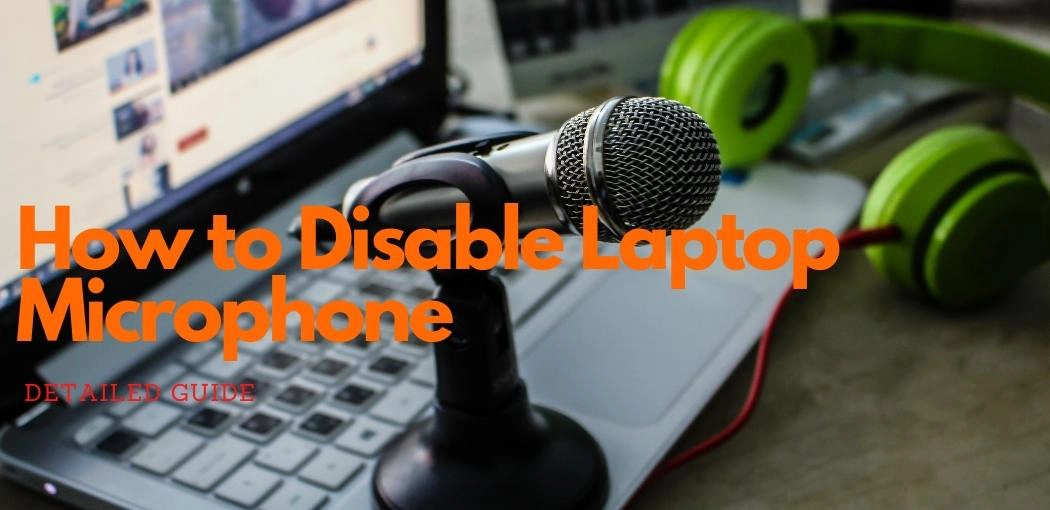
One of the most common questions we hear from our audience is “How do I disable my laptop microphone?”
This question can be answered in a few different ways. In this blog post, we will discuss How to Disable Laptop Microphone and why you would want to.
We also have some tips for those who are trying to keep their privacy or just don’t want anyone listening.
As a matter of fact, the microphone can be a serious privacy concern.
Why you should disable your laptop microphone?
This is pretty simple. With all of the hacking news popping up, people are becoming more and more concerned about their online security.
When it comes to having a microphone on your laptop (or desktop computer), you never know who might be listening in or what they could do with that information.
This is why we recommend disabling your built-in microphone if you’re not using it.
How to disable your laptop microphone
There are a few different ways that you can learn on How to Disable Laptop Microphone. We’ll list them below, starting with the easiest:
1. Use the Device Manager
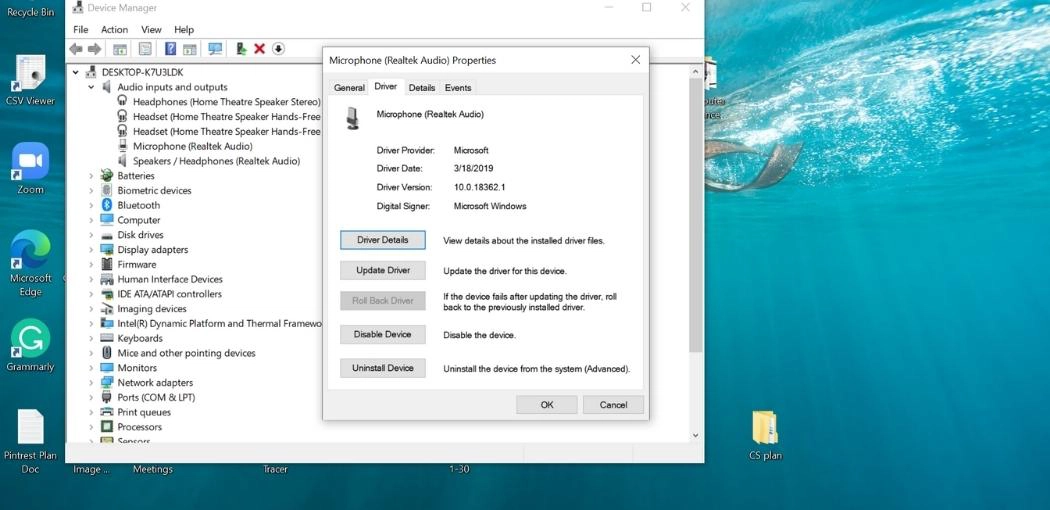
Use the Device Manager to disable the laptop microphone.
A Device Manager is a piece of software that comes with most Windows computers.
It can be used to change hardware settings and add or remove components from your computer such as the microphone, Webcam, Keyboard etc.
If you don’t know how to access this tool on your laptop already – it’s fairly easy!
First right-click on the start menu and click on Device Manager. Or search for device manager.
Next, look for the category labelled “audio inputs and outputs” or something along those lines.
You should find a bunch of items that are associated with your laptop’s internal hardware such as microphones, speakers etc.
Once you’ve found it, double click on the item labelled as Microphone (Realtek audio)
Once you have done that a window will pop up. From here, just disable the microphone by clicking on the “Disable” button.
2. Use Device Properties
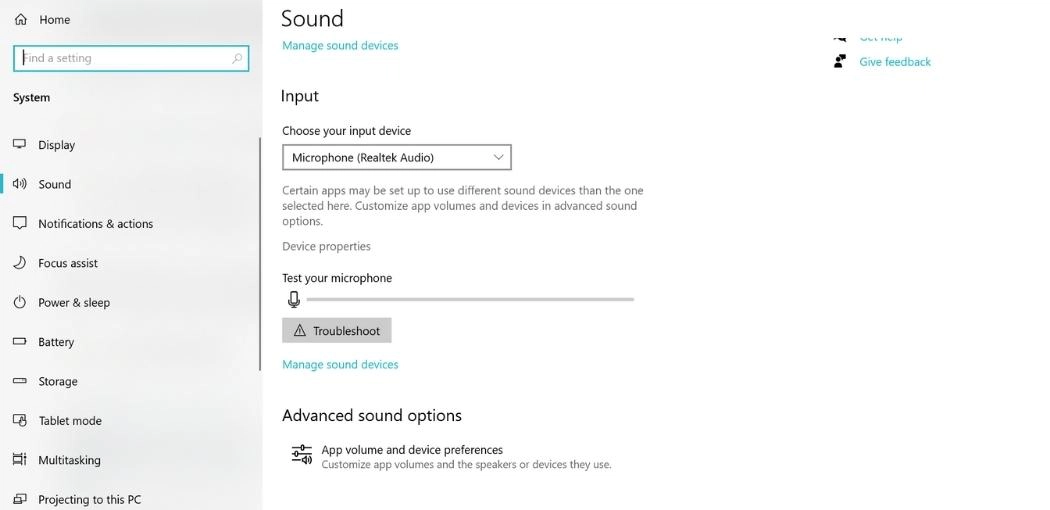
Another way to disable your laptop microphone is through Device Properties.
This can be done by right-clicking on the speaker icon in your taskbar and selecting “Open sound setting.”
Once you have the setting wizard open, look for a tab labelled as “sound” and expand it. You will see all of the available input and output devices listed.
Scroll down to the input and make sure the microphone is selected. Then Just right-click on the properties and a prompt wizard will pop up.
Check the dialogue box and the microphone will be disabled.
3. Use Manage Sound Devices
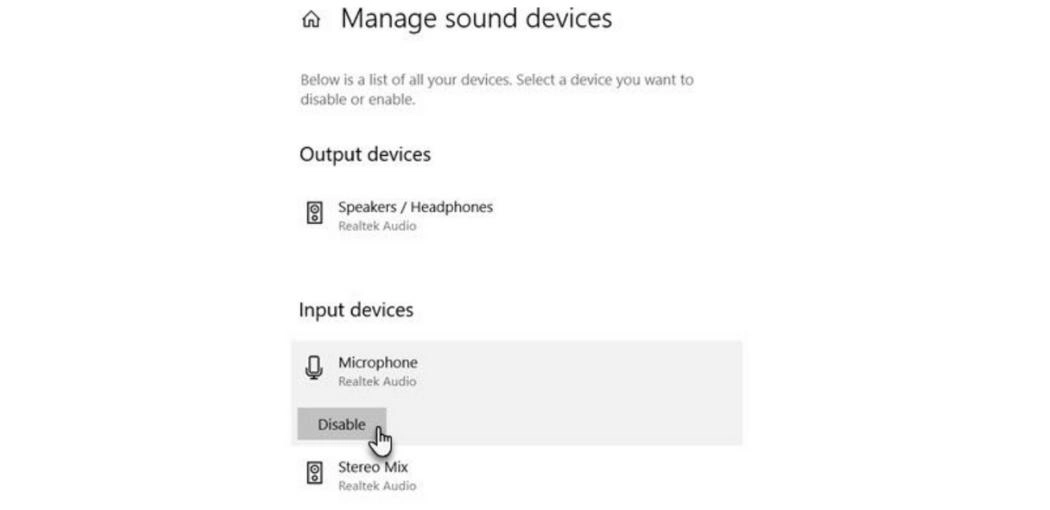
The third way to disable your laptop microphone is by using the Manage Sound Devices tool.
This can be accessed through Control Panel. To open Control Panel, type “control panel” in the windows search bar and it will appear as an option on the top of the list.
Once you have Control Panel open, look for a tab labelled “sound” and click on it.
This will bring up a list of sound devices that are connected to your computer.
You should see the microphone listed as an input device. Just right-click on the microphone and select disable from the menu that pops up.
4. Mute the Microphone in Specific Apps
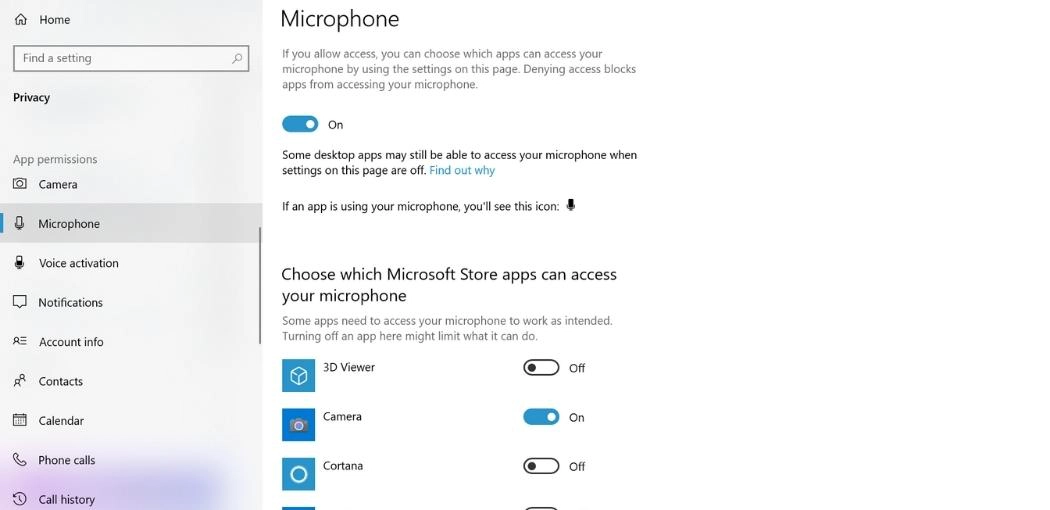
The fifth and final way to disable your laptop microphone is by muting it in specific apps.
This can be done on an app-by-app basis, so if you only want the microphone muted for certain programs – this is the way to do it.
To mute the microphone for a specific app, go into that app and look for a mute button or an audio icon that might be located at the top.
When you click on it, just toggle the sound off and your microphone will automatically get muted.
Or you can use your device system by clicking on the settings and clicking on the privacy tab.
After this scroll down within the app permissions and find Microphone. You can disable it altogether or by clicking one after another.
Tips for disabling your laptop microphone

There is one more thing we wanted to share with our community as it relates to disabling your laptop microphone.
Some of you might be asking, well what if I need to use the microphone for a specific purpose? Is there a way to enable it temporarily without having to go through all these steps?
The answer is yes! There are a few ways that you can do this.
One way is by using the function keys on your keyboard. Most laptops have a function key that will enable and disable the microphone.
Another way is by using a program like Skype or Google Hangouts. These programs usually have a setting that will allow you to choose which device you want to use for audio input.
Last, but not least, is by using an app like Audio Hijack. This app will allow you to select which app you want to use the microphone for and it will enable it for that specific program.
We hope that this article was helpful and provided you with enough information to disable your laptop microphone. If not, please feel free to reach out to us for more support.
Can laptop mic be hacked?

Yes, laptop microphones can be hacked. In fact, there have been cases where hackers have been able to use the microphone to eavesdrop on conversations.
This is why it’s important to disable your laptop microphone when you’re not using it.
You can also protect yourself by using a good antivirus program and keeping your software up-to-date.
Do Laptops record you?
Some laptops do have the ability to record audio, but most don’t. It really depends on your specific model and make of laptop.
If you’re not sure if your laptop can or cannot record audio, it’s best to disable the microphone just in case.
Our Conclusion on How to Disable Laptop Microphone
The simple answer is to disable the microphone on your laptop. This can be done by going into Settings -> Privacy -> Microphone, and then clicking “Disable” under the list of apps that have access to your mic.
If you are an audio engineer or do a lot of video conferencing online, this may not work for you because it will prevent any sound from being captured through your computer’s speakers as well.
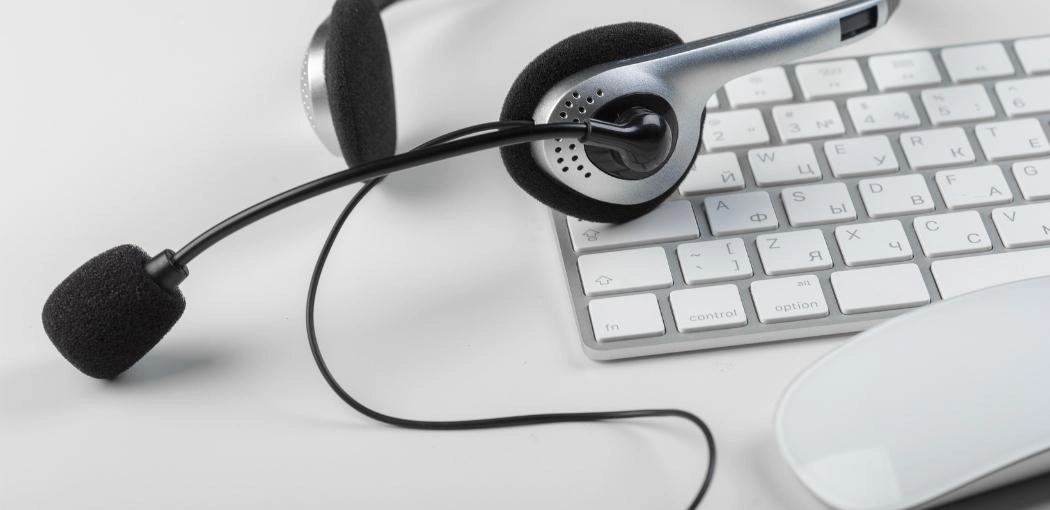
In those cases, we recommend using a USB headset with individual microphones – they’re less expensive than purchasing two separate devices (one for recording and one for playback),
And they offer better quality in general since there isn’t too much distance between each device like there would be if you were wearing both earbuds
The steps in this article should help you disable the laptop microphone. If you have any questions, be sure to ask. You can also troubleshoot your microphone in case of any issues.
Reference on the same topic
- https://www.thewindowsclub.com/disable-microphone-windows-10
- https://hookeaudio.com/how-to-disable-laptop-microphone/
- https://www.windowscentral.com/how-disable-your-laptops-webcam-and-microphone
Related article: